Tutorial: Your first field day
You are starting your first day with assigned leads. By the end of this tutorial you will have logged visits, submitted one new lead request, and checked your personal reports.
1. Start on the dashboard
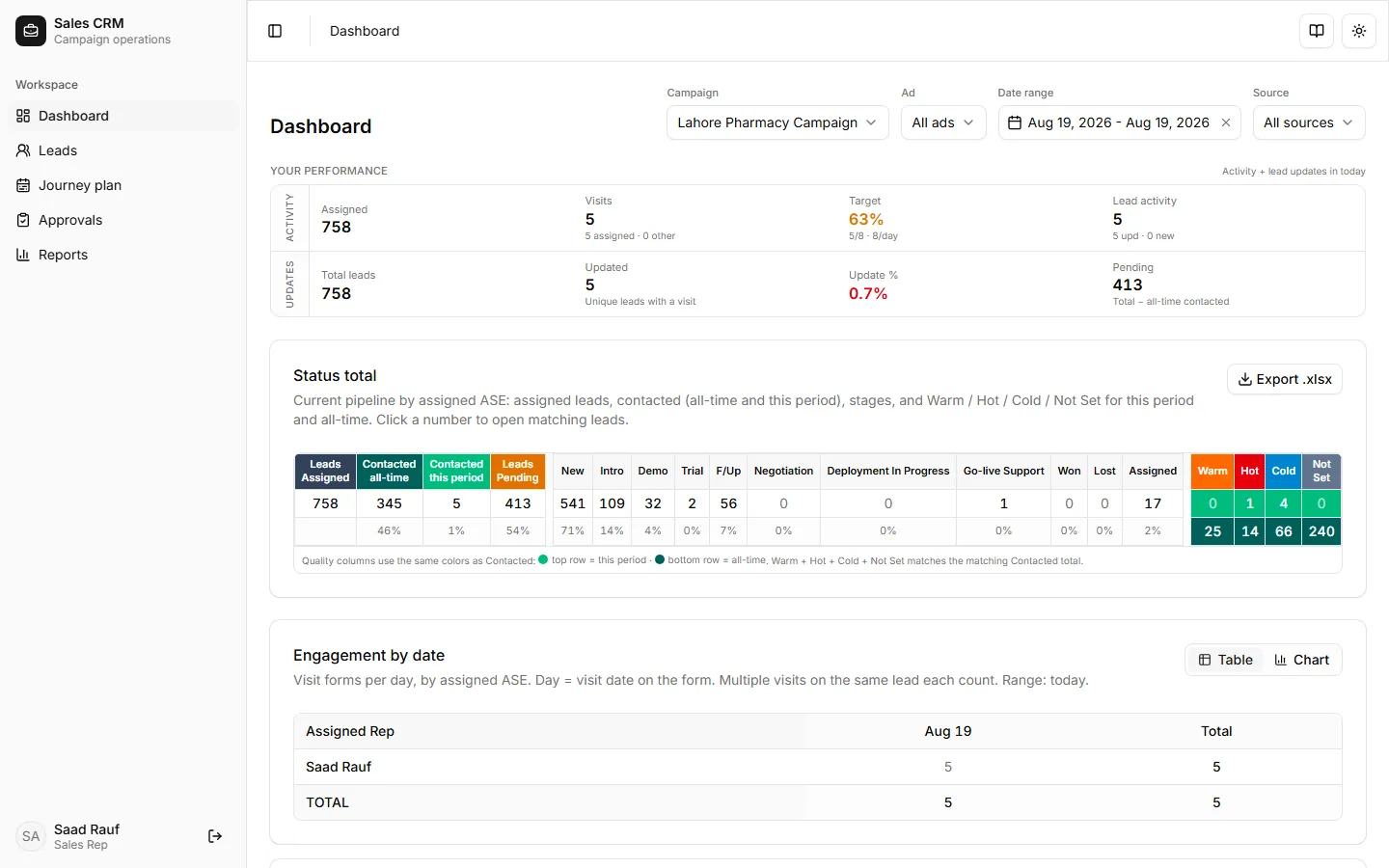
Section titled “1. Start on the dashboard”Sign in and open Workspace → Dashboard. Your KPI cards show assigned lead count, visits today, and outcomes — scoped to your rep account only.
2. Open your lead list
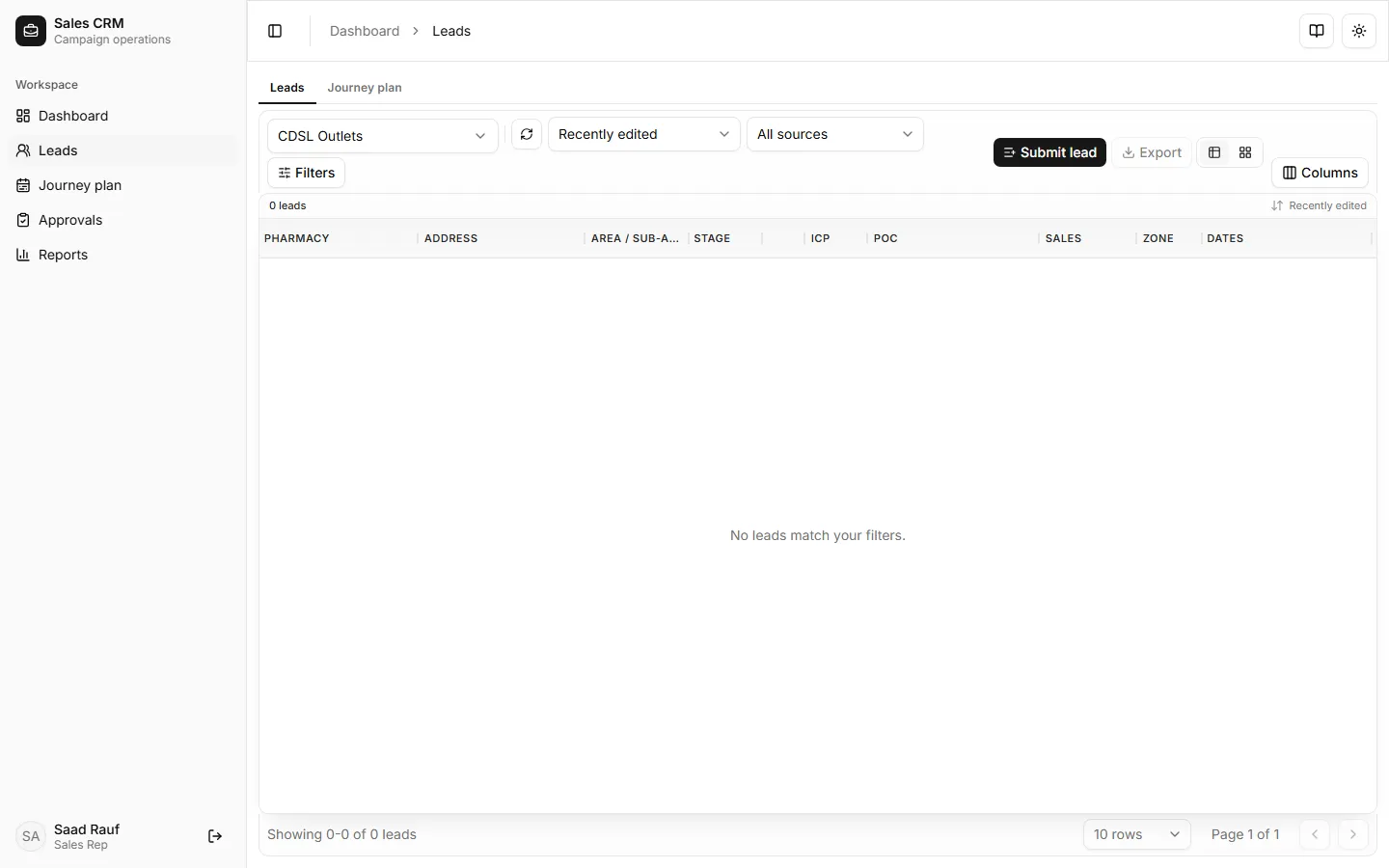
Section titled “2. Open your lead list”Go to Workspace → Leads. Filter by stage or area if your manager gave you a territory plan. Each row is an outlet you can visit or call.
3. Log a visit on a lead
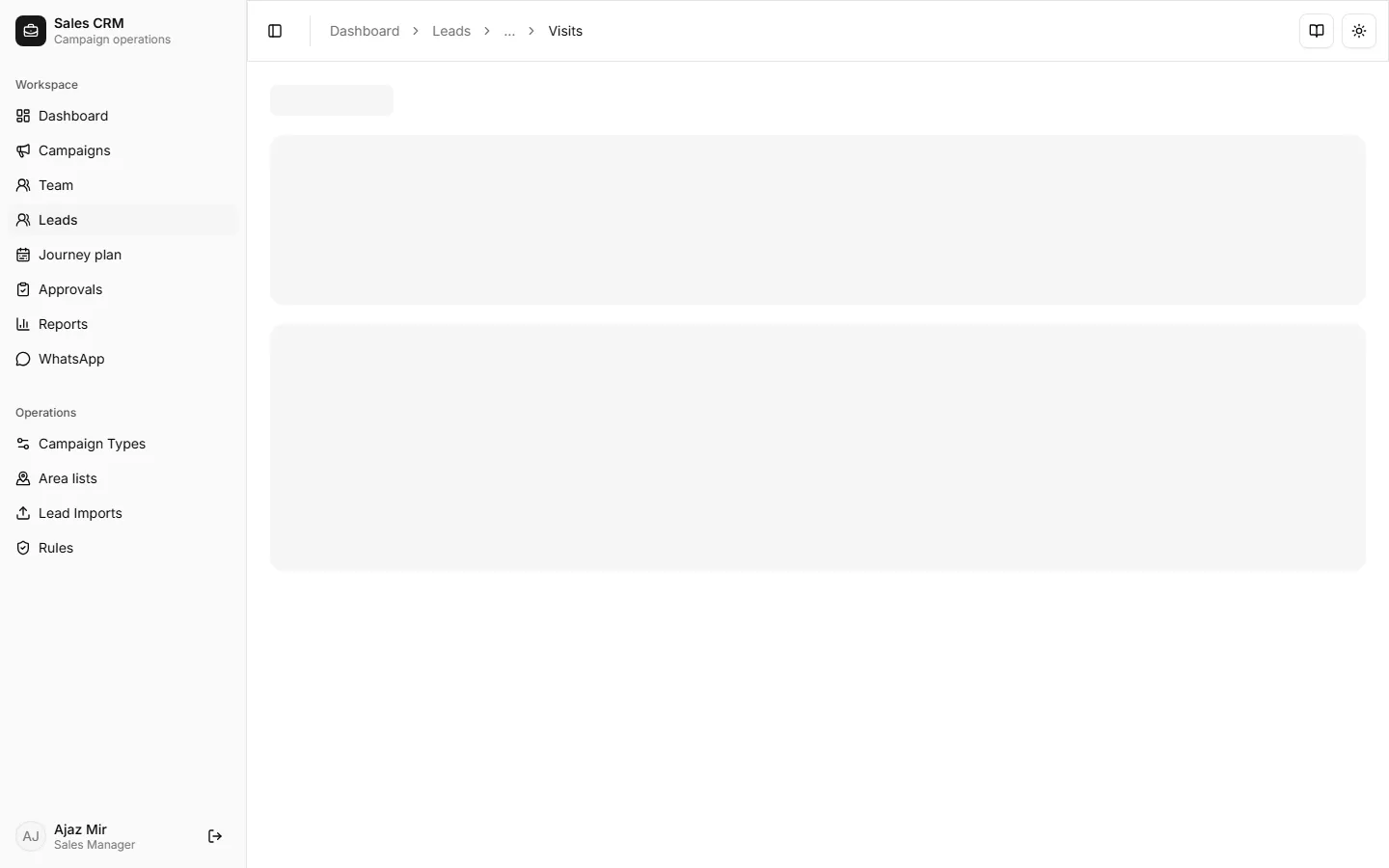
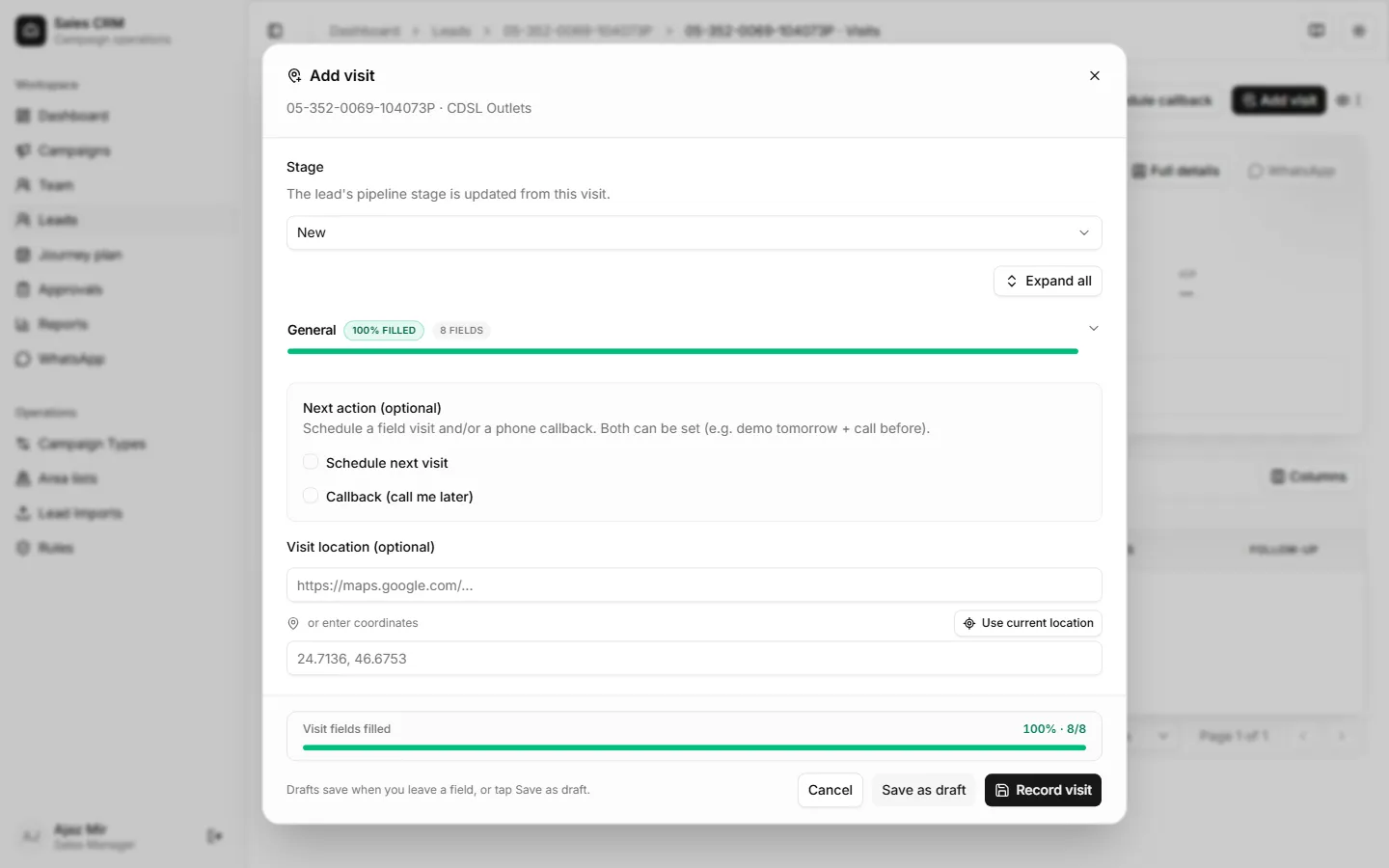
Section titled “3. Log a visit on a lead”Open a lead’s Visits tab, click Add visit, and record what happened — demo, follow-up, stage change, notes. Visits drive your reports and manager dashboards.
4. Submit a new lead request
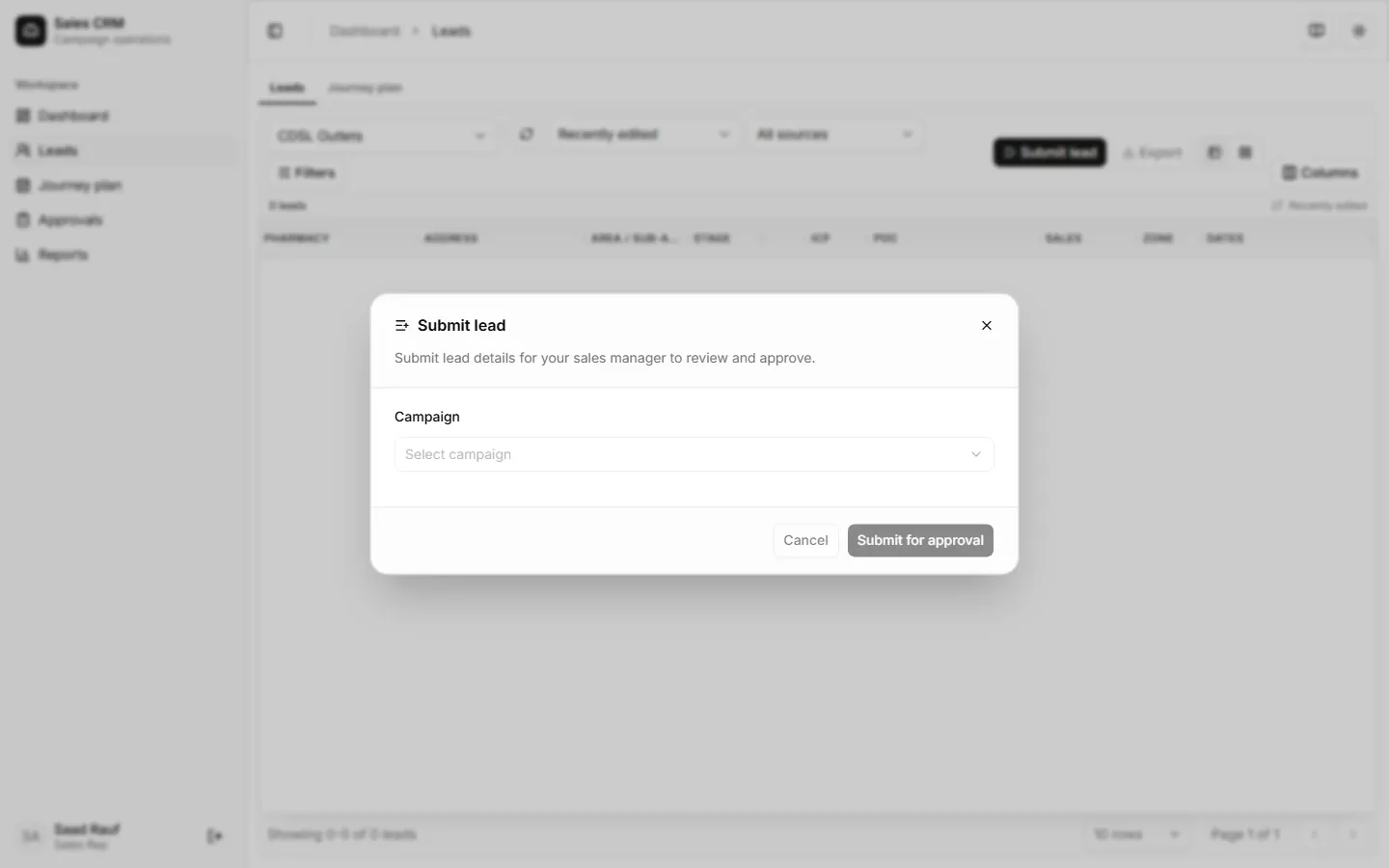
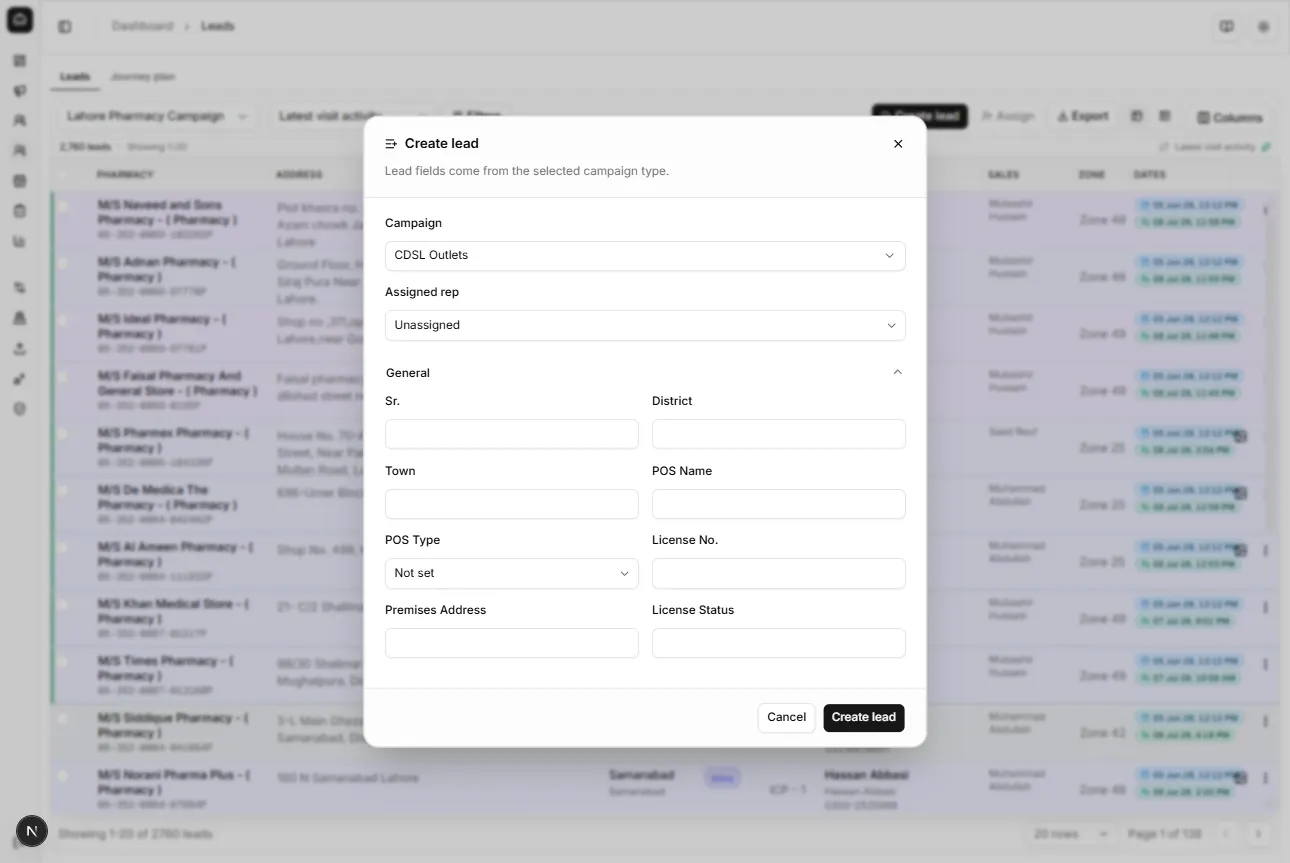
Section titled “4. Submit a new lead request”Found an outlet not on your list? Click Submit lead, choose a campaign, then fill the creation fields that appear and send for manager approval. Track status under Workspace → Approvals.
5. Review your reports
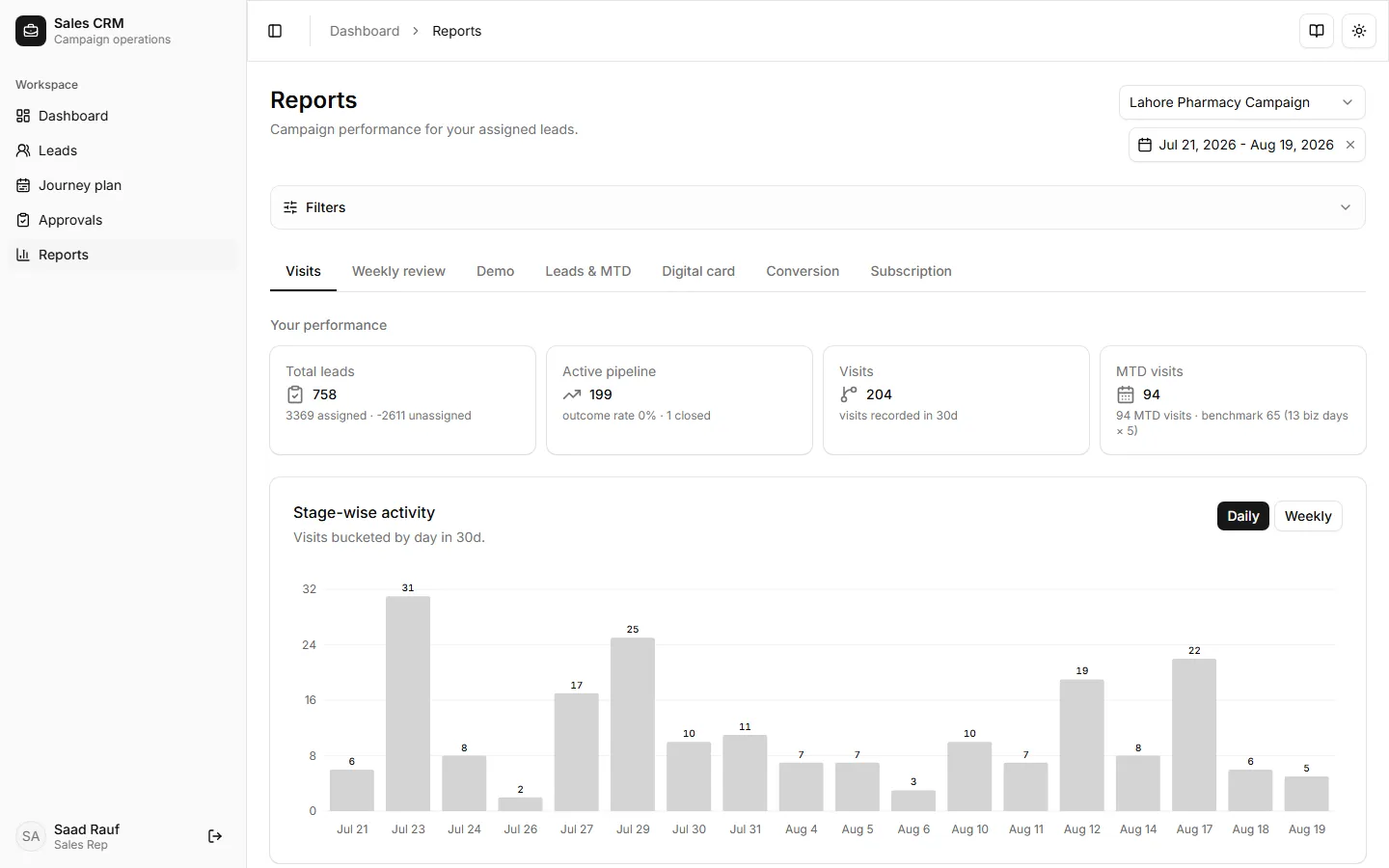
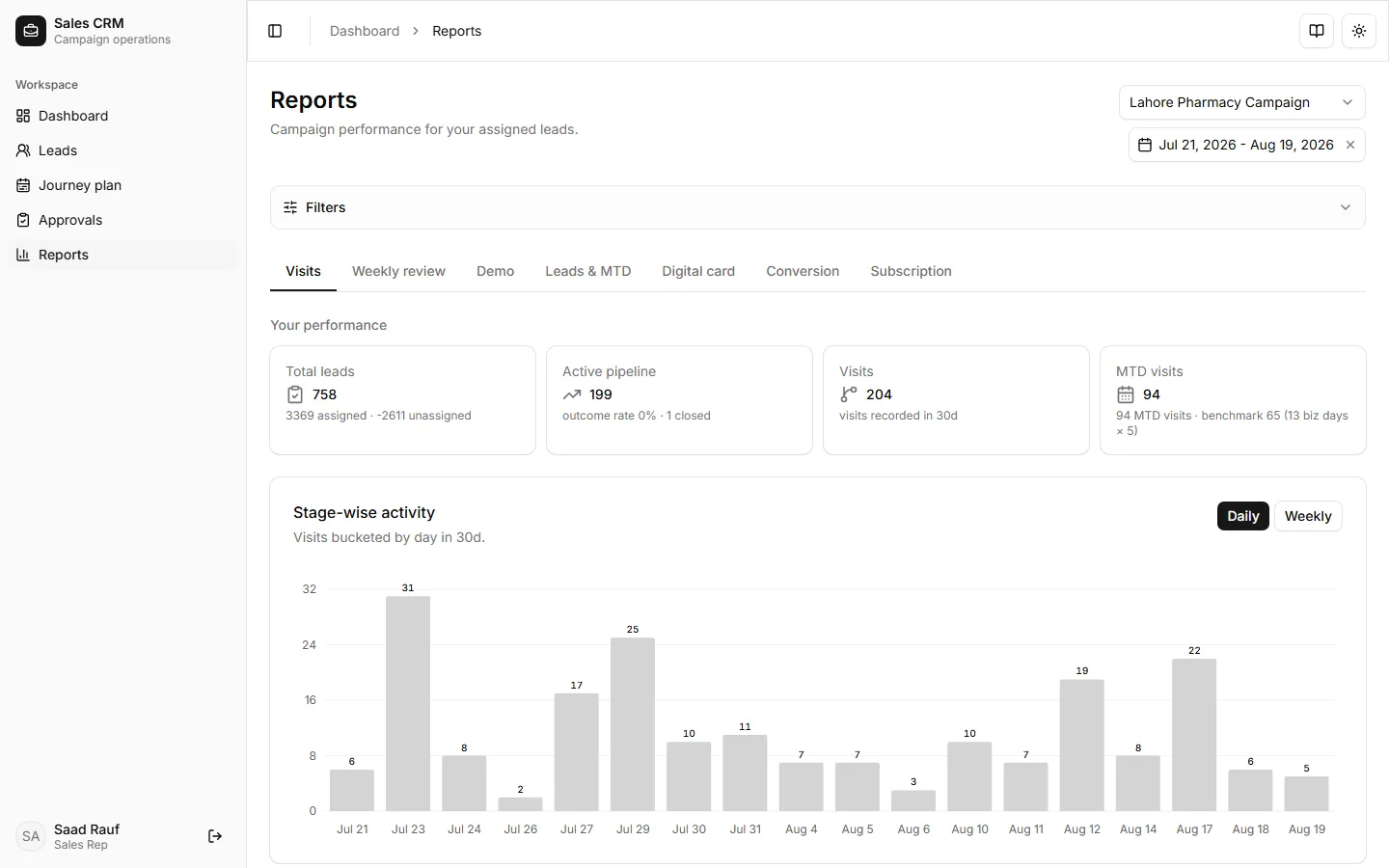
Section titled “5. Review your reports”End the day on Workspace → Reports. Check Visits for coverage and Outcomes for stage movement on your book.
You have completed a full field day in the CRM. Use the how-to index when you need a single task refresher.