Submit a lead request
When to use this: You found an outlet that is not on your assigned list.
Where: Workspace → Leads → Submit lead
See the full flow (submit → approval → visit) in New lead, approval, and visit.
- Open Workspace → Leads.
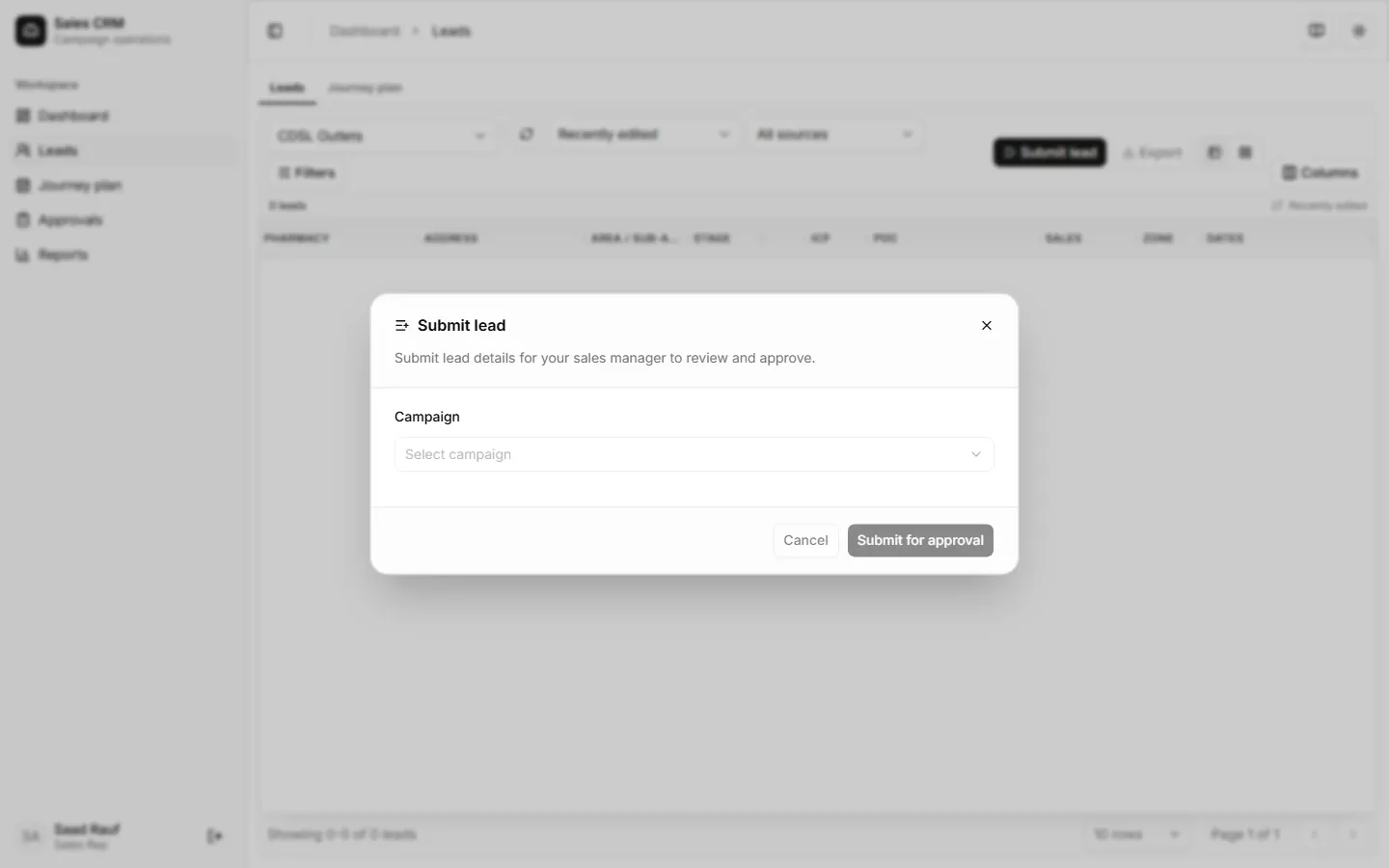
- Click Submit lead — the drawer opens on the Campaign step. Pick the campaign your outlet belongs to.
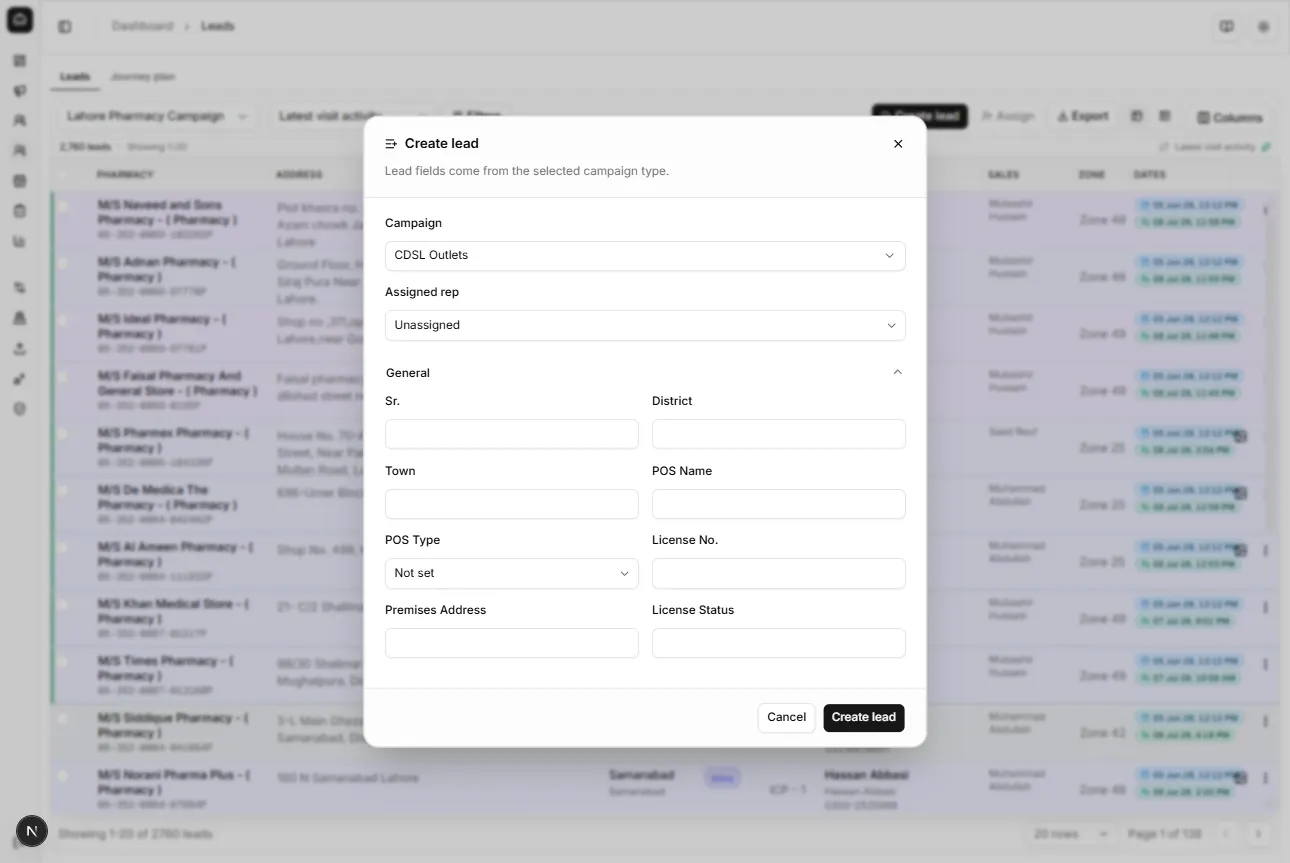
- After you select a campaign, the creation fields for that campaign type appear (pharmacy name, address, license, contacts, etc.). Fill every required field.
- Click Submit for approval — the request goes to your manager’s Approvals queue.
Success looks like
Section titled “Success looks like”The request shows as Pending under Workspace → Approvals. After approval, the lead appears on your list.
If it goes wrong
Section titled “If it goes wrong”| Symptom | Likely cause | Fix |
|---|---|---|
| Submit lead not in toolbar | Wrong role | Confirm you are signed in as a sales rep |
| Campaign list empty | No rep-eligible campaigns | Ask your manager to activate a campaign |
| Submit fails | Required field missing | Complete every required creation field |
Related
Section titled “Related”- Review lead approvals (manager)