Tutorial: New lead, approval, and visit
This tutorial walks through the full field-to-pipeline cycle: propose a new outlet, wait for your manager to approve it, then log a visit once the lead is on your book.
Overview
Section titled “Overview”| Step | Who | Where in the app |
|---|---|---|
| 1. Submit new outlet | Sales rep | Workspace → Leads → Submit lead |
| 2. Track request status | Sales rep | Workspace → Approvals |
| 3. Approve or reject | Sales manager | Workspace → Approvals |
| 4. Record visit | Sales rep | Lead → Visits → Add visit |
Managers follow the same approval steps in Lead approval workflow.
1. Submit a new lead request
Section titled “1. Submit a new lead request”When you find an outlet that is not on your assigned list:
- Open Workspace → Leads.
- Click Submit lead (reps see this instead of Create lead).
- Select the campaign — the form stays on the campaign step until you pick one.
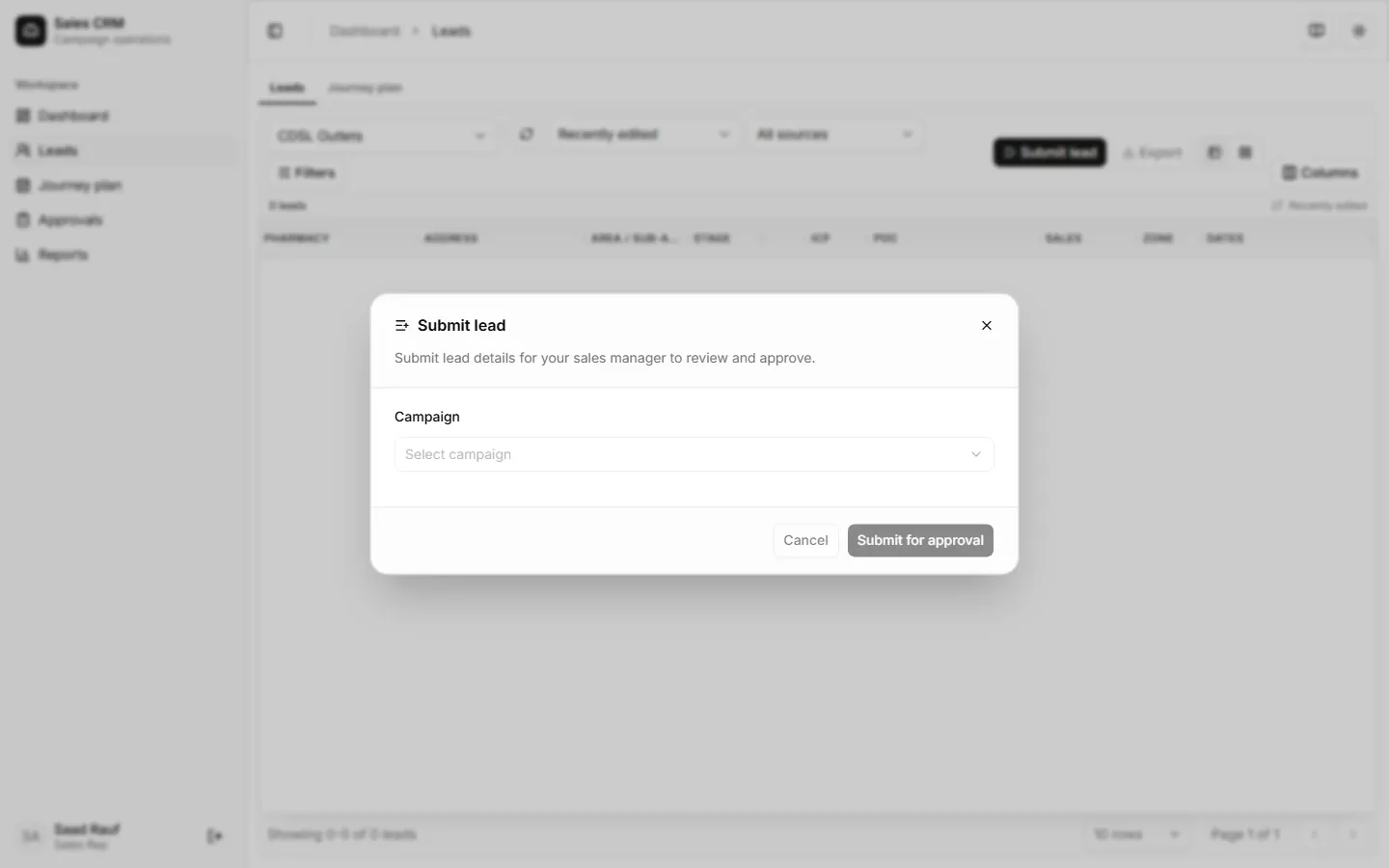
- Fill the creation fields that appear for that campaign type — pharmacy name, address, contact, etc.
- Click Submit for approval.
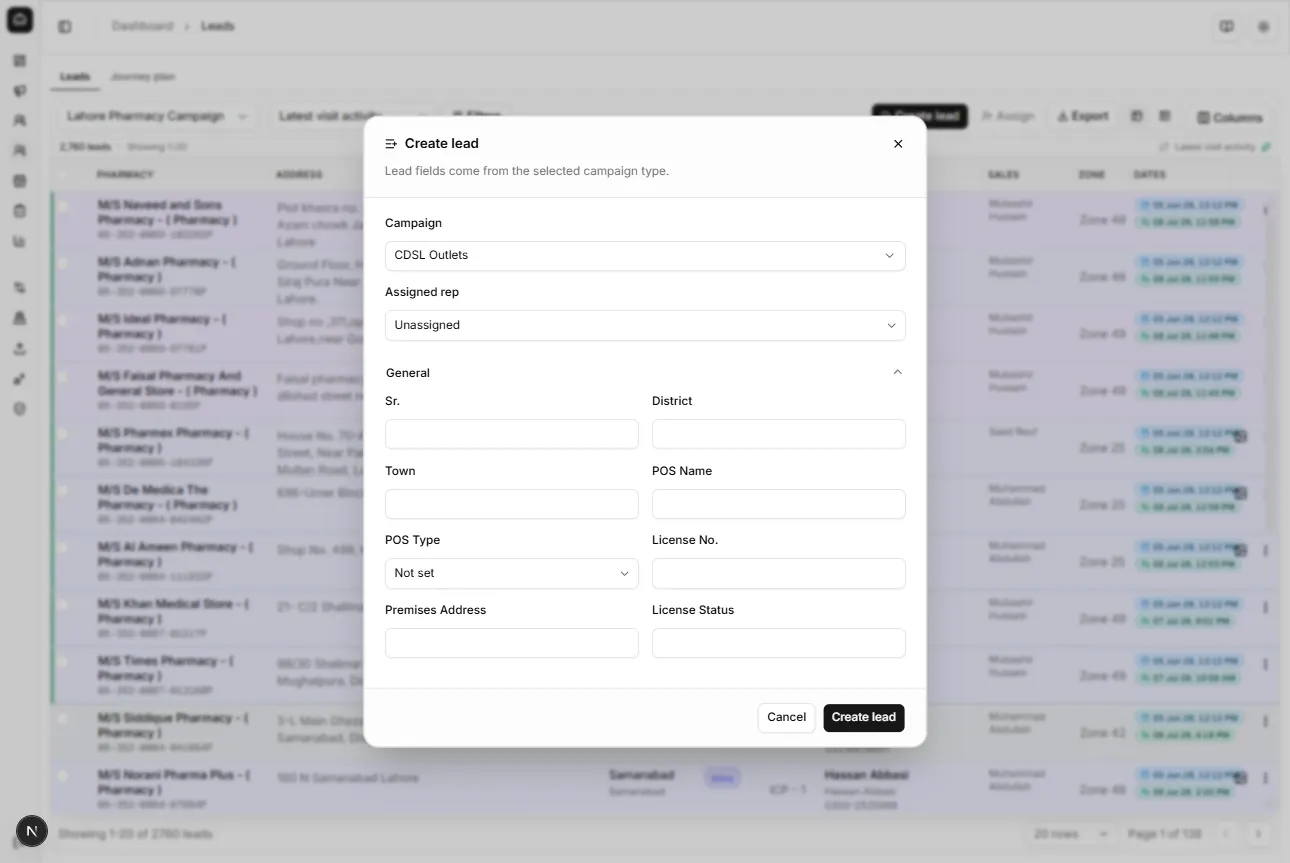
The request is sent to your manager. You do not get the lead on your list until it is approved.
2. Track approval status
Section titled “2. Track approval status”- Open Workspace → Approvals.
- Find your request — status is Pending approval until the manager acts.
- If rejected, read the manager’s reason and use Resubmit after fixing the details.
Approved requests disappear from pending and the new lead appears under Leads on your assigned book.
3. After approval — open the lead
Section titled “3. After approval — open the lead”Once approved:
- Go to Workspace → Leads and locate the new outlet (filter by Latest visit activity or search).
- Open the lead row and go to Visits.
4. Record the visit
Section titled “4. Record the visit”- On the lead’s Visits page, click Add visit.
- Set Stage (pipeline step), complete visit field sections for the campaign type, and add an optional note or location.
- Click Record visit.
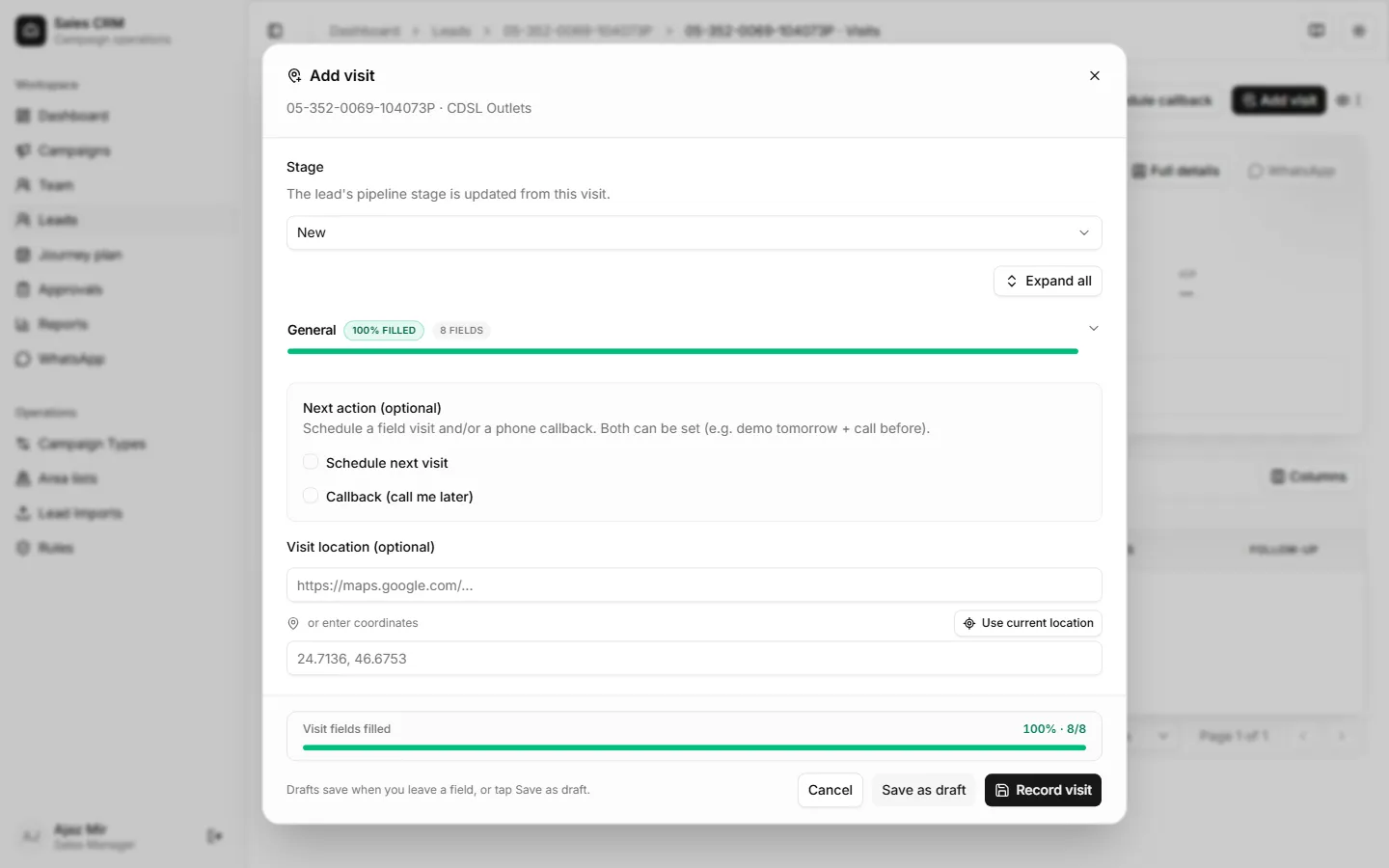
The visit counts toward your Dashboard KPIs and Reports → Visits.
Success checklist
Section titled “Success checklist”- Request submitted with all required creation fields
- Manager approved the request (or you resubmitted after rejection)
- Lead appears on your assigned list
- Visit recorded with correct stage and notes
Related
Section titled “Related”- Submit a lead request — quick reference
- Log a visit — quick reference
- Lead approval workflow — manager side